
Blooket: How to Play, Join, Host, and Choose the Right Mode
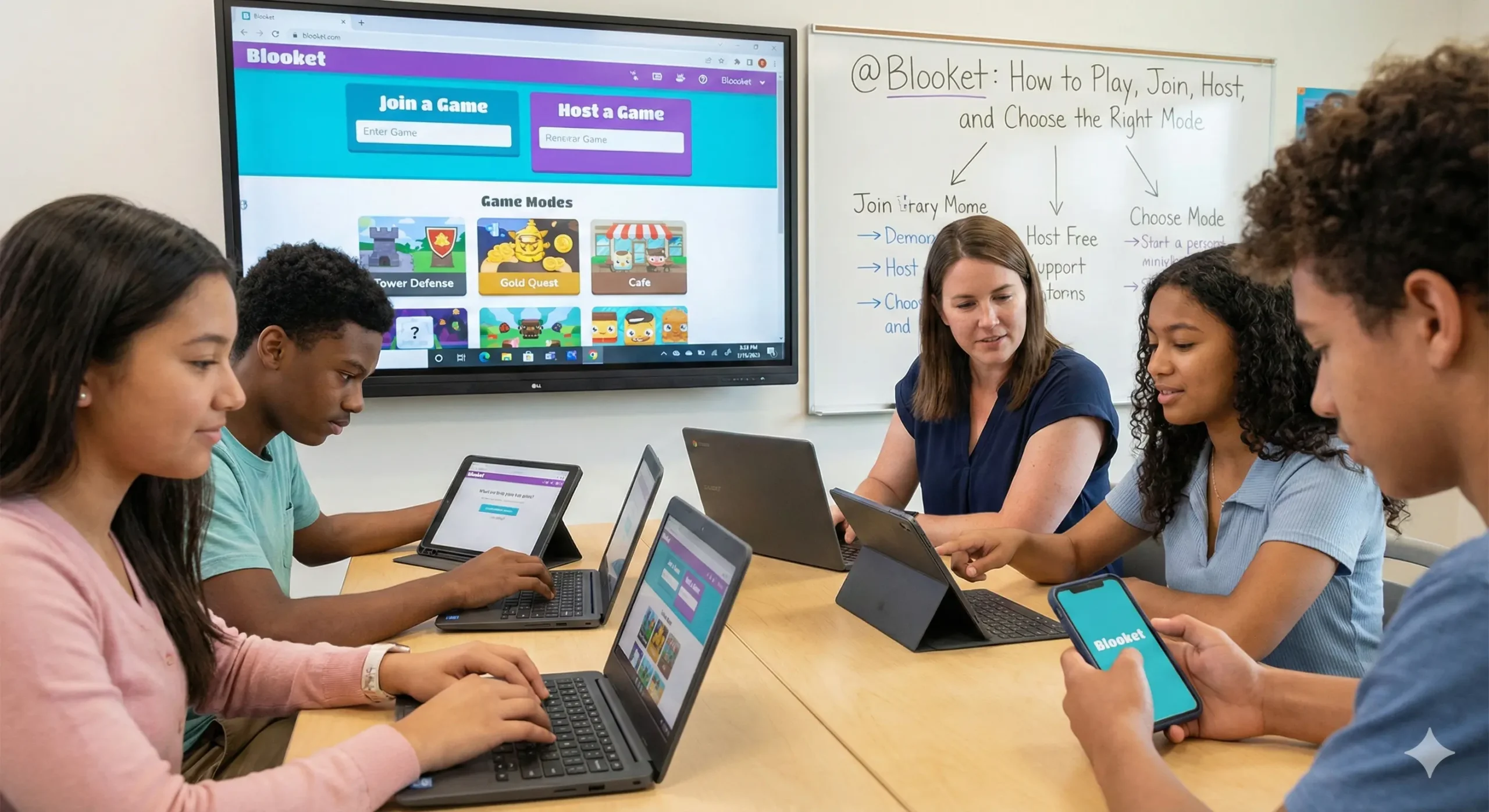
This classroom review game turns question sets into fast rounds. Students join with a Game ID, QR code, or join link. Teachers host live games and check results after. Most issues come from school networks, not the game itself.
What Blooket is and who it helps
Blooket is built for class review, not long lessons. Teachers use it for warm ups, vocab checks, and test prep. Students stay alert because the same questions can feel new in each mode. After game reports help you spot weak topics fast. Use those results to reteach the same day. The best sessions keep a clear purpose and a short time limit.
How students join a live game
Students can join three ways. A teacher can display a six digit game code. Students can scan a QR code with the device camera. A join link also works well for laptops and virtual classes. Nicknames affect your reports. Real names make results useful. Random names help when nicknames get silly. After joining, students pick a character and wait for the host to start.
Join checklist
• Open the correct play screen
• Enter the game code carefully
• Pick a clean nickname or accept a random one
• Choose a character and wait
• Start answering when the host begins
Join problems and fast fixes
Wrong codes cause most failures. Re enter the code and refresh the page once. If the whole class fails, test on the teacher device. A school filter can block access during class time.
Accounts and login without confusion
Only the teacher needs an account to host. Students can join with a Game ID, QR code, or link without logging in. Student accounts are optional. They can unlock more characters, track stats, and enable solo play. Age rules apply to accounts. The site asks users to certify minimum age. Children under 13 can create accounts only with parent consent or school consent. Follow your district policy before student sign ups.
How teachers host a live game cleanly
Hosting works best with a simple flow. Start with a set, then a mode, then clear rules.
Pick a strong question set
Question sets are the core. Keep questions short and clear. Avoid trick wording and double negatives. Mix easy and medium items at the start. Add harder items after students settle in. Ten to twenty questions fits most classes.
Choose a live host mode
The standard live host menu includes these modes: Monster Brawl, Deceptive Dinos, Gold Quest, Crypto Hack, Fishing Frenzy, Blook Rush, Battle Royale, Tower Defense, Cafe, Factory, Racing, and Classic. Some extra modes appear as Plus only or seasonal options.
Set options that save time
Set a time limit or a goal. Turn on late joining to reduce interruptions. Use random names when needed. Keep the instruction screen on for new classes. If prompts distract students, hosts can hide account creation options during the game. Share the join code, link, or QR code, then press Start.
Rules that prevent point chasing
• One device per student
• No shouting answers
• Read the whole question
• Play fair and stay calm
• Review mistakes after the round
Review results in three minutes
Pick three missed questions and discuss them. Ask one student to explain the correct answer. Reteach one key idea in plain words. Then move on.
Mode picker table for faster planning
| Goal | Good fit | Why it works | Main risk |
|---|---|---|---|
| Quick review | Classic, Racing | Simple and fast pacing | Speed over thinking |
| Strategy focus | Tower Defense, Factory | Keeps attention longer | Students chase upgrades |
| High energy | Gold Quest, Battle Royale | Strong competition pull | Noise and stress |
| Mixed class | Monster Brawl, Blook Rush | Variety with structure | Point chasing |
Some modes require Plus. Some appear only during events. If you do not see a mode, that may be why.
Troubleshooting that works in schools
Most issues come from filters, browsers, or weak Wi Fi. Fix problems in this order.
Access Blocked message
When the school network blocks the site, use the request access option. Then notify your Google Workspace Administrator. Admins can update third party app access in Google Workspace for Education.
Images or characters do not load
This usually points to filtering. Schools may need to unblock res.cloudinary.com and images.unsplash.com. Those services deliver images. Refresh the page after changes.
Lag, disconnects, and frozen screens
Close extra tabs and heavy apps. Switch browsers if the page hangs. Move closer to the router on weak Wi Fi. If issues continue, run the official debugger page. Share failed test results with the school tech team.
Privacy basics in plain language
Students who join games usually provide only a username. Teachers can see names and scores in reports. If you project the game screen, classmates can see usernames and scores. Avoid sharing that screen on public social posts. Keep student information off public channels.
Brand communication strategy for smoother adoption
A brand communication strategy is a message plan for this tool. It keeps expectations clear and reduces pushback.
Three message pillars
Pillar one is learning first. Pillar two is fair play. Pillar three is safe classroom use. Repeat these ideas each time you play.
Short script for students
Today is review, not random tapping. Read before you answer. Points are fun, but learning matters more. Use a clean name and play fair. We will review missed questions after.
Simple note for parents and admins
Tell parents what students do and why. Explain that students can join with a code. Share how you use reports to reteach. If access is blocked, tell admin and IT you need allow list support.
FAQs
Do students need an account to play
No. Students can join with a Game ID, QR code, or join link.
What is the fastest way to join in class
A game code works best for most rooms. QR codes help younger students.
Which mode is easiest to manage
Classic stays simple and predictable.
Why do images disappear at school
Filters can block image services. IT can unblock the needed hosts.
What should I do when access is blocked
Use request access, then contact your Google Workspace Administrator.
Final takeaway
Treat the game as practice, not the whole lesson. Pick clean question sets and set rules before students join. Choose modes based on your goal and class energy. When something breaks, check the network first. Clear messaging makes the tool feel purposeful.


